Building a Smarter Workspace with Multiple Monitors
Running a small business often means juggling emails, documents, accounting tools, client portals, and internal systems all at once. Learning how to set up multiple monitors can dramatically improve how your team works by reducing screen clutter and unnecessary task switching. Instead of constantly minimizing windows or toggling between tabs, two screens allow employees to see more information at once, work faster, and make fewer mistakes.
For small offices, productivity improvements don’t always require expensive software or major upgrades. Sometimes, simple hardware changes—like adding a second screen—deliver noticeable efficiency gains almost immediately. When done correctly, a multi-monitor setup supports smoother workflows, better focus, and less frustration during the workday.
At Gallop Technology Group, we help small businesses design practical, secure, and reliable office technology environments. From workstation setup and device compatibility to cybersecurity and managed IT services, our team ensures your technology supports productivity instead of slowing it down. This guide explains how to properly configure multiple monitors, so your team gets the benefits without the technical headaches.
How to Set Up Multiple Monitors the Right Way for Office Work
Understanding how to set up multiple monitors starts with recognizing that not all computers, cables, or monitors work the same way. Many businesses run into issues simply because ports don’t match, settings aren’t adjusted correctly, or displays are positioned poorly.
A successful setup balances three things: compatible hardware, proper configuration, and thoughtful placement. When these elements align, employees can easily move tasks across screens, reference documents side-by-side, and maintain a comfortable posture throughout the day.
Understanding Your Computer’s Display Capabilities
Before connecting anything, it’s important to confirm what your computer can support. Most modern desktops and laptops allow two screens, but not all support them in the same way.
Desktop computers typically include multiple video outputs, making how to connect dual monitors fairly straightforward. Laptops, on the other hand, may require adapters or docking stations to support two screens at the same time.
The most common display ports include HDMI, DisplayPort, USB-C, and older VGA connections. The number and type of ports determine whether you can plug in both monitors directly or need additional equipment. Checking these details ahead of time prevents unnecessary purchases and setup delays.
Choosing the Right Monitors for Office Use
Monitors don’t need to be high-end or designed for gaming to be effective in an office environment. For most business users, screen size, resolution, and adjustability matter more than advanced features.
Matching monitor sizes and resolutions helps avoid scaling issues and visual discomfort. When screens display content at different sizes, employees often strain their eyes or waste time resizing windows. Ideally, both monitors should display text at the same clarity and scale.
For small businesses, consistency across workstations also simplifies IT support. Standardized monitor models reduce troubleshooting time and make replacements easier when equipment fails.
How to Connect Dual Monitors to a Desktop Computer
Desktop setups are usually the easiest when learning how to connect dual monitors. In most cases, each monitor connects directly to a separate video output on the computer.
Once connected, the operating system typically detects both screens automatically. If not, display settings allow you to enable and arrange them manually. Ensuring each cable is securely connected and matched to the correct input source on the monitor is essential for avoiding flickering or signal loss.
Using quality cables also matters. Cheap or damaged cables often cause intermittent issues that appear random but disrupt daily productivity.
How to Extend a Laptop to Two Monitors
Many small businesses rely heavily on laptops, which makes how to extend laptop to two monitors a common challenge. Since laptops usually have limited ports, additional hardware may be required.
Docking stations and USB-C hubs are popular solutions because they allow multiple monitors, keyboard, mouse, and network connections through a single cable. This setup keeps desks tidy while making it easy for employees to connect and disconnect when working remotely.
Once connected, display settings can be adjusted, so the laptop screen either becomes a third display or remains closed while the two external screens handle all work tasks.
Configuring Display Settings for Efficiency
After physical connections are complete, software configuration determines how effective the setup feels. Most operating systems allow users to extend displays rather than duplicate them. Extending creates one large workspace across two screens, which is essential for multitasking.
Arranging monitors in the correct order ensures that moving the mouse between screens feels natural. If the cursor jumps unpredictably, it usually means the screen alignment needs adjustment.
Resolution and scaling should also be reviewed. Text that appears too small or too large leads to eye strain and fatigue over time, especially during long workdays.
Positioning Monitors for Comfort and Productivity
Monitor placement has a direct impact on posture, focus, and long-term comfort. Screens should be positioned at eye level, about an arm’s length away, and angled slightly to reduce glare.
For most office workers, the primary monitor should sit directly in front of them, with the secondary monitor slightly to the side. This arrangement minimizes neck strain while still providing quick access to reference material.
Proper ergonomics reduces fatigue and helps employees stay productive throughout the day, especially in roles that involve extended computer use.
Organizing Work Across Two Screens
Having two screens only improves efficiency if employees use them intentionally. Common best practices include keeping communication tools like email or chat open on one screen while dedicating the other to focused tasks.
Accountants might keep spreadsheets on one display and reference documents on the other. Office managers often track calendars and task lists alongside reports or invoices. These workflows reduce interruptions and help employees stay organized without constant window switching.
Over time, teams naturally develop screen habits that suit their roles, but initial guidance helps maximize the value of the setup.
Common Problems and How to Avoid Them
Even well-planned setups can encounter issues. Displays not being recognized, incorrect resolutions, or lagging performance are common complaints.
These problems often stem from outdated graphics drivers, incompatible adapters, or power limitations. Addressing them quickly prevents small frustrations from becoming daily obstacles.
For businesses without internal IT staff, having professional support ensures problems are resolved properly rather than patched temporarily.
Security and IT Considerations for Multi-Monitor Setups
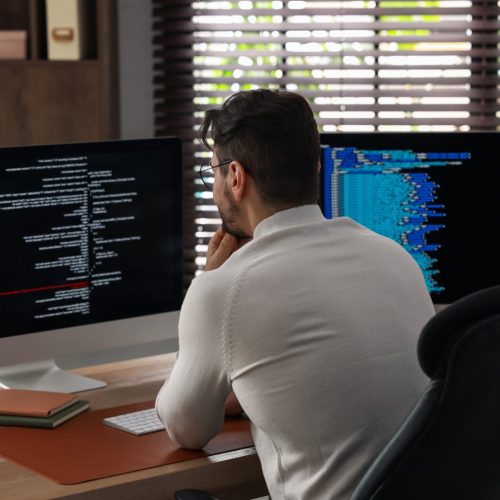
Additional screens increase visibility, which is great for productivity but requires thoughtful security practices. Sensitive data displayed across multiple monitors should be protected, especially in shared or open office environments.
Screen locking policies, secure login credentials, and endpoint protection help ensure that efficiency doesn’t come at the cost of security. For regulated industries, these safeguards are especially important.
When to Get Professional IT Help
While learning how to set up multiple monitors is manageable for many offices, ongoing issues or inconsistent setups across teams signal the need for expert support. Professional IT services ensure hardware compatibility, secure configurations, and reliable performance.
At Gallop Technology Group, we help small businesses design workstation setups that align with productivity goals while maintaining security and stability. Our managed IT services, device support, and cybersecurity solutions ensure your technology environment grows with your business instead of holding it back.
Build a More Efficient Office Setup
Adding multiple monitors is one of the simplest ways to improve office productivity when done correctly. By understanding how to connect dual monitors, planning how to extend a laptop to two monitors, and configuring two screens for real workflows, small businesses can unlock meaningful efficiency gains without major investments.
If your team is struggling with cluttered screens, slow workflows, or inconsistent setups, it may be time to reassess how your technology supports daily operations.
Gallop Technology Group specializes in helping small businesses build efficient, secure, and reliable IT environments. Contact our team today at 480-614-4227 and learn how we can support your office technology needs and keep your business running smoothly.
Sources
- Microsoft Support – Multiple Display Setup
https://support.microsoft.com/windows
- Dell Business Knowledge Base – Monitor Connectivity Basics
https://www.dell.com/support
Frequently Asked Questions:
What is the best way to connect dual monitors to a desktop computer?
The best way to connect dual monitors is to plug each monitor into separate video outputs on the desktop, such as HDMI or DisplayPort, and configure them through the system’s display settings.
Do all computers support two screens at the same time?
Not all computers support two screens. Most modern desktops do, but laptops vary depending on their graphics capabilities and available ports. Checking your device specifications helps avoid setup issues.
Is using two screens better for small business productivity?
Yes, using two screens helps reduce constant window switching, improves focus, and allows employees to work faster by viewing multiple applications or documents at the same time.
What monitor size works best for a dual-monitor setup?
For most offices, monitors between 22 and 27 inches work well. Matching sizes and resolutions across two screens creates a more comfortable and consistent viewing experience.
What are common problems when setting up multiple monitors?
Common problems include screens not being detected, mismatched resolutions, or flickering displays. These issues are often caused by outdated drivers, poor-quality cables, or incompatible adapters.