Practical Printer Troubleshooting for Reliable Office Printing
Printer issues are one of the most common and frustrating problems in small business environments. When a printer suddenly stops working, prints blank pages, jams repeatedly, or refuses to connect, productivity comes to a halt. For small teams without dedicated in-house IT staff, these disruptions can feel overwhelming and costly. That’s why understanding printer troubleshooting is essential for keeping daily operations running smoothly.
Printer troubleshooting does not require deep technical knowledge or complex tools. In most cases, common printer problems can be identified and resolved with a clear process and basic checks. Learning how to troubleshoot printer issues empowers small business owners and office staff to quickly diagnose problems, reduce downtime, and avoid unnecessary service calls. With the right approach, many printer problems can be resolved in minutes rather than hours.
At Gallop Technology Group, we help small businesses stay productive by providing managed IT services, proactive support, and practical guidance for everyday technology challenges. From printers and workstations to networks and cybersecurity, our team supports offices that want reliable systems without constant disruptions. This guide aligns with our mission to help small teams work smarter, reduce frustration, and maintain dependable technology.
Understanding Why Printer Problems Happen
Printer problems rarely occur without warning. In many cases, issues build up over time due to configuration changes, outdated drivers, poor maintenance, or network disruptions. Understanding why printers fail makes troubleshooting easier and more effective.
Small offices often rely on shared printers that are used heavily throughout the day. Frequent use combined with infrequent maintenance increases the likelihood of paper jams, toner issues, and connectivity problems. In addition, printers are often affected by software updates, operating system changes, or network reconfigurations that happen without users realizing the impact.
Environmental factors also play a role. Dust, humidity, low-quality paper, and improper storage of toner or ink can all contribute to common printer problems. When these factors are combined with inconsistent usage patterns, printers can become unreliable without a clear reason.
Common Printer Problems Small Teams Face
Printers Not Responding or Showing Offline
One of the most frequent printer problems in small offices is a printer that appears offline or unresponsive. This issue often occurs when the printer loses its network connection, or the computer is sending jobs to the wrong device.
A printer may show offline due to a changed IP address, a restarted router, or a loose network cable. Wireless printers are especially vulnerable to connectivity issues if the Wi-Fi signal is weak or unstable. Restarting the printer and confirming it is connected to the correct network often resolves this problem.
Another cause is outdated printer drivers. When operating systems update, older drivers may stop communicating properly with the printer. Ensuring the correct driver is installed can restore normal operation quickly.
Paper Jams and Feeding Errors
Paper jams are among the most common printer problems and are often caused by simple issues that go unnoticed. Using the wrong paper type, overfilling the tray, or loading paper incorrectly can all lead to repeated jams.
Over time, rollers inside the printer wear down or become dirty. When rollers lose grip, paper may feed unevenly or become stuck. Regular cleaning and proper paper storage can significantly reduce these issues.
When clearing a jam, it is important to remove paper slowly and carefully. Tearing paper can leave small fragments inside the printer, which leads to future jams and additional damage.
Poor Print Quality
Faded prints, streaks, smudges, or uneven color output are clear signs that something is wrong. These printer problems are often linked to low toner or ink levels, clogged print heads, or dirty internal components.
Low-quality or incompatible toner cartridges can also cause inconsistent output. Even when cartridges are new, they may require calibration or alignment to produce clear results. Running built-in maintenance tools can often restore print quality without further intervention.
In laser printers, worn drums or fusers can affect print clarity. These components have a limited lifespan and may need replacement after extended use.
Printer Not Found on the Network
Network printer issues can be especially frustrating for small teams. A printer that worked yesterday may suddenly disappear from the list of available devices. This often happens when network settings change or when the printer receives a new IP address.
Confirming that the printer is powered on and connected to the correct network is the first step. Checking the printer’s display or configuration page can help identify its current network settings.
If multiple users are affected, the issue is likely network-related rather than device-specific. In these cases, restarting the router or verifying firewall settings may resolve the problem.
Step-by-Step Printer Troubleshooting for Small Offices
Start With the Basics
Effective printer troubleshooting always begins with basic checks. Ensure the printer is powered on, connected properly, and free of visible error messages. Many printer problems are caused by simple oversights such as empty trays, open covers, or paused print queues.
Checking cables and power connections can quickly rule out hardware issues. Even wireless printers may require physical connections for stable operation.
Verify Printer Status and Settings
Before diving into advanced troubleshooting, confirm that the printer is set as the default device on the computer. Print jobs sent to the wrong printer will appear to disappear, causing confusion.
Check out the print queue to ensure jobs are not stuck or paused. Clearing stalled jobs can often restore normal printing without further steps.
Update or Reinstall Printer Drivers
Outdated or corrupted drivers are a major cause of printer problems. Drivers act as the communication bridge between the computer and the printer. When they fail, printing becomes unreliable or impossible.
Downloading the latest driver directly from the manufacturer’s website ensures compatibility with the operating system. Reinstalling the driver can resolve persistent errors that basic troubleshooting cannot be fixed.
Run Built-In Maintenance Tools
Most modern printers include maintenance utilities designed to diagnose and fix common printer problems. These tools can clean print heads, align cartridges, and test internal components.
Running these utilities periodically helps prevent issues before they impact productivity. Maintenance tools also provide valuable diagnostic information when troubleshooting more complex problems.
Check Network Connectivity
When troubleshooting network printers, confirm that the printer and computer are on the same network. Guest networks or segmented Wi-Fi systems can prevent devices from communicating properly.
Assigning a static IP address to the printer can reduce future connectivity issues. This prevents the printer’s address from changing unexpectedly after it restarts.
Preventing Printer Problems Before They Start
Regular Maintenance and Cleaning
Preventive maintenance plays a critical role in reducing printer problems. Dust buildup and worn components increase the likelihood of jams and poor print quality. Simple cleaning routines can extend the life of printers significantly.
Following manufacturer guidelines for maintenance ensures internal components remain in good condition. Scheduling routine checks reduces emergency troubleshooting situations.
Use Quality Supplies
Low-quality paper and ink may seem cost-effective initially, but they often cause more printer problems in the long run. Paper that sheds dust or toner that leaks can damage internal components and reduce reliability.
Using manufacturer-recommended supplies improves performance and minimizes wear. Over time, this reduces the frequency of troubleshooting and repairs.
Keep Software Updated
Operating system updates and security patches can impact printer functionality. Keeping printer firmware and drivers updated ensures continued compatibility.
Ignoring updates may lead to unexpected failures that require more time-consuming troubleshooting later.
When Printer Troubleshooting Is Not Enough
While many printer problems can be resolved internally, some issues require professional support. Repeated failures, hardware damage, or complex network conflicts may indicate deeper problems.
Small businesses benefit from having reliable IT support to handle advanced troubleshooting and preventive planning. This ensures that printers and other critical systems remain dependable.
At Gallop Technology Group, we help small teams eliminate recurring printer issues by providing proactive IT management, network optimization, and device support. Our approach focuses on preventing problems before they disrupt your business.
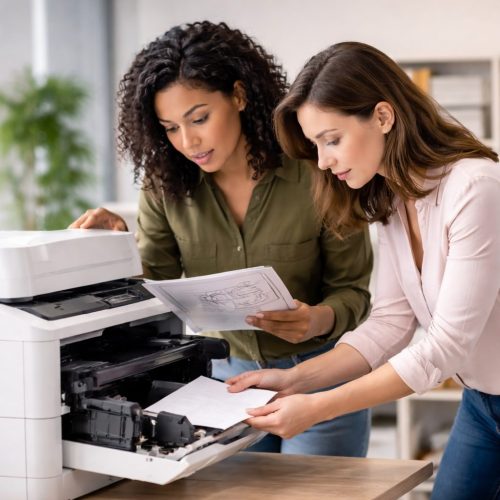
How Gallop Technology Group Supports Small Businesses
Printer troubleshooting is just one part of maintaining a reliable office environment. Printers depend on stable networks, secure systems, and proper configuration to function consistently.
Gallop Technology Group supports small businesses with managed IT services designed to reduce downtime and improve efficiency. Our services include network management, endpoint support, cybersecurity protection, and proactive monitoring to catch issues early.
By working with a trusted IT partner, small teams gain peace of mind knowing their technology is professionally managed. This allows staff to focus on their work instead of troubleshooting equipment.
Final Thoughts: Keep Your Office Printing Reliable
Printer problems are inevitable, but constant disruption does not have to be. With a structured approach to printer troubleshooting, small teams can resolve many issues quickly and confidently.
Understanding common printer problems, performing regular maintenance, and knowing when to seek professional support can significantly reduce downtime. A proactive strategy ensures printers remain reliable tools rather than daily obstacles.
If your office is experiencing recurring printer issues or broader technology challenges, Gallop Technology Group is here to help. Call our team at 480-614-4227 to learn more about our managed IT services and discover how we support small businesses with dependable, secure technology solutions.
Sources
- HP Support – Printer Troubleshooting Guides
https://support.hp.com
- Brother Support – Common Printer Problems and Solutions
https://support.brother.com
- Microsoft Support – Fix Printer Connection Issues
https://support.microsoft.com
Frequently Asked Questions:
How do I troubleshoot printer issues when it says “offline”?
To troubleshoot printer issues when a device shows offline, check the network connection, restart the printer and computer, verify the correct printer is selected, and update the printer driver.
How can I fix poor print quality?
Poor print quality may be caused by low toner, clogged print heads, or dirty internal parts. Running the printer’s built-in cleaning tools often resolves these issues quickly.
How do I troubleshoot printer issues on a shared office network?
Check that the printer is powered on, connected to the correct network, and has a stable IP address. Restarting network equipment and reinstalling drivers can also help.
Can outdated drivers cause printer problems?
Yes, outdated or corrupted drivers frequently cause printer problems. Updating drivers from the manufacturer’s website often resolves communication issues.
Is it better to repair or replace a problematic office printer?
If troubleshooting does not resolve issues and repair costs are high, replacing the printer may be more cost-effective for small businesses.